 sitegrab Studio
Bring a page in.
Start with the current tab or paste a URL. Choose the pages you need and see which assets were captured or skipped.
Capture a page, make it your own, and take the code with you. A focused visual workspace, right inside Chrome.
Chrome extension · Google sign-in required · Store release pending review
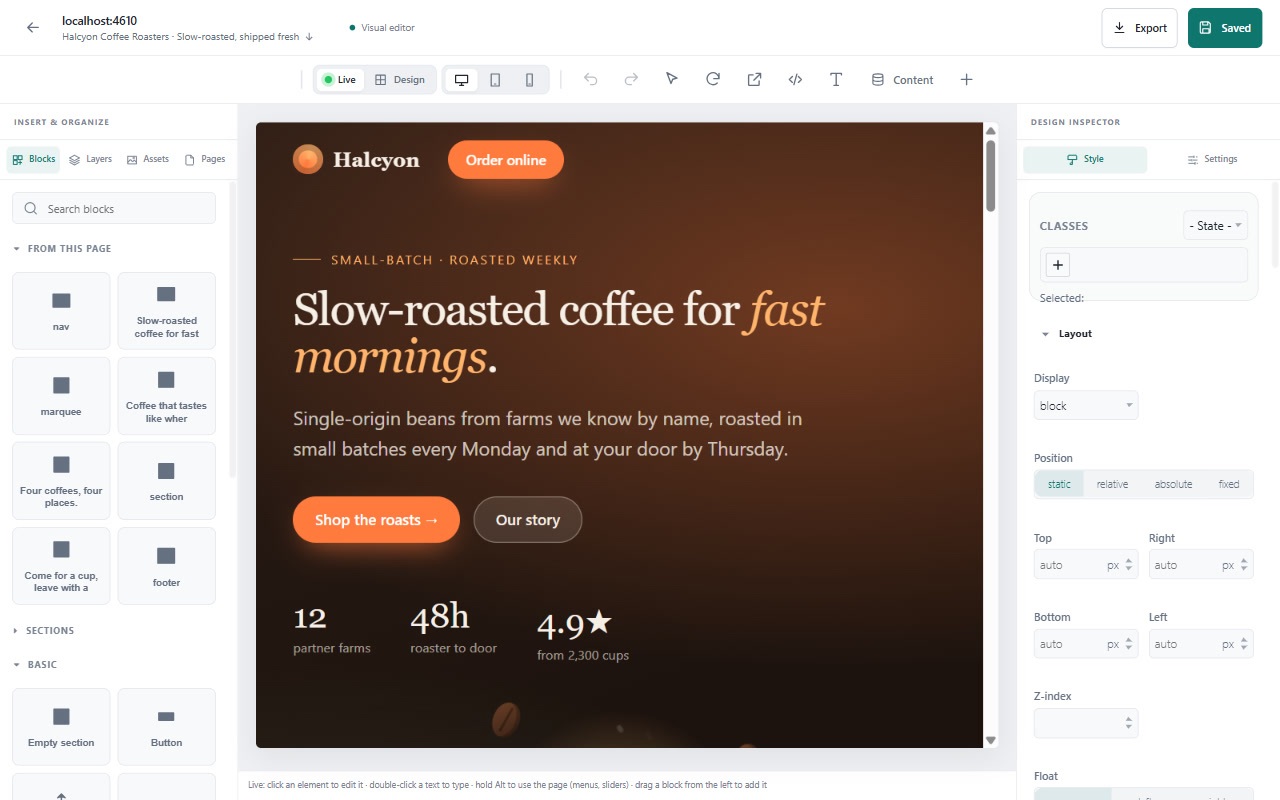
One workspace from your first capture to your next commit.
Start with the current tab or paste a URL. Choose the pages you need and see which assets were captured or skipped.
Edit text and styles, work with layers and blocks, and preview your layout at different sizes. Switch between Live and Design views.
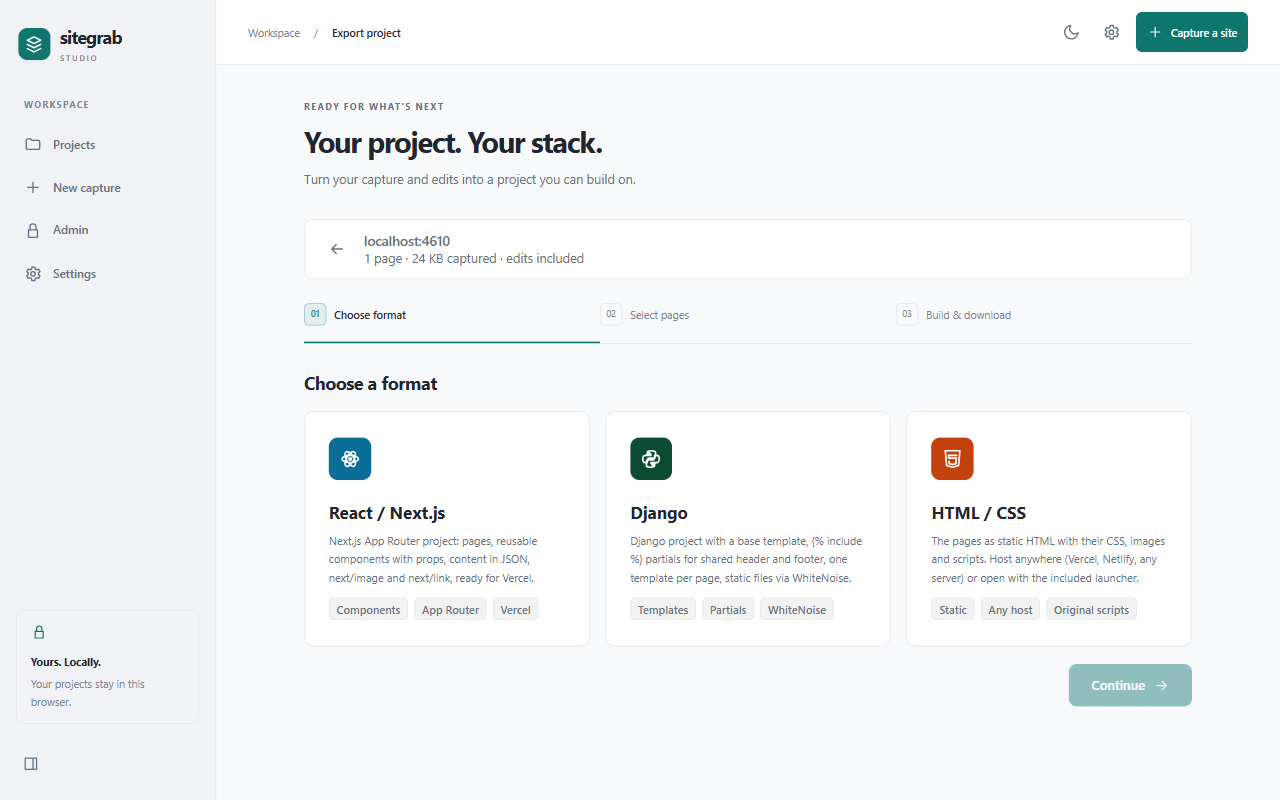
Download a source-code ZIP and continue in your editor. Review and test the result before putting it into production.
Choose the format that fits your project.
Backend services, protected content, and some dynamic interactions need manual work. Capture only sites you own or have permission to reuse.
Search projects, manage pages, and keep an eye on storage. Extension projects stay on your device; capture and Live view connect to the websites you select.
Read the privacy policy ↗Copy a structured content prompt into your preferred AI assistant, paste the response back, and review changes before applying them. Nothing is sent to an AI service automatically.
Use it on websites you own or have permission to reuse. Chrome internal pages and protected content cannot be captured normally. Some sites and dynamic interactions may need manual adjustments.
The extension stores projects in your browser. Google and Supabase handle sign-in. Capture and Live view make requests to the selected websites and asset hosts. See the privacy policy for details.
No. Exports provide frontend files or project scaffolding. Databases, payment processing, server logic, and authenticated services must be implemented separately.
Use the support channel on the Chrome Web Store listing once available, or contact Nanotom. Include your Chrome version and the step that failed; do not share passwords or private page content.